How to Spot and Fix Airbnb's AI Edits to Your Listing in 10 Minutes Without Waiting on Support
Airbnb may show guests an AI-written title or a cover photo you didn't choose. How to check guest view, what hosts say has helped, and what to report.

You search for your own place, and it doesn't look like your place.
The title is one you never wrote. The cover photo is one you never picked.
Your stomach drops a little. Then come the questions. When did this start? Is it hurting bookings? Can you stop it?
Take a breath. You can't control everything Airbnb shows. But you can see it, you can test a few things, and you can make sure that whatever Airbnb picks is still good.
Let's go step by step.
Step 1: Look at your listing the way a guest does
Most hosts only see the host side. That's the problem. Hosts keep finding these changes by accident, because the host view looks normal.
One AirHostsForum member put it simply, writing about Vrbo: "Those using Vrbo might want to check your listing in incognito guest view mode."
The same advice works for Airbnb. Here's how:
- Open a private or incognito window in your browser. Stay logged out.
- Go to Airbnb and search your town for real dates that are open on your calendar.
- Scroll until you find your listing card. Look at the title and the photo on the card.
- Take a screenshot. Make sure the date and time show on your screen, or write them down.
- Click into your listing. Look at the title at the top of the page. Screenshot that too.
- Do the same search on your phone, logged out if you can.
- Try one filter guests in your area would use, like a pool or free parking. Check your card again.
Figure
Laptop in a private window next to a phone, both showing a rental search grid; one listing card shows a different title and thumbnail on each screen. No logos, no faces.
Hosts also mention the "Switch to traveling" option in the Airbnb app. It's a quick way to browse as a guest. But you're still logged in as you. So do the logged-out check as well.
Then do it again next week. Hosts in the Airbnb Community Center thread on AI titles say what shows up changes over time and from search to search. One screenshot is a snapshot. A few screenshots show a pattern.
If you want a deeper walkthrough of what guests see first, read How to Pick the First 5 Photos Guests See.
Step 2: Know what Airbnb's AI is changing, according to hosts
Let's separate what Airbnb has said from what hosts are seeing.
What Airbnb has said. In its 2026 fall update on September 30, Airbnb listed AI-powered descriptions in search results that highlight a home's key features, starting in the US. That's the official part.
What hosts report. Everything below comes from host forums. It is not Airbnb documentation. Some of it may be a test, a bug, or something that only shows up for some guests.
The title on your search card
An Airbnb Community Center thread called "AI generated Titles on Listing? How to change?" has 33 replies. It opened in July and was still active in October.
The first host's complaint is one a lot of people share: "The problem is that mine is pulling details that are not important to my house"
That's the part that stings. You chose your title to lead with the thing guests book for. The AI may lead with something else.
Your cover photo
This one comes up again and again.
In that same Community Center thread, a host writes that the AI "also in many cases, selects a different photo than the one you have set as your primary."
On AirHostsForum, in a thread called Recent AI changes to my listing, a host wrote: "ABB is also picking the main picture for us"
And in another AirHostsForum thread: "It keeps changing my cover photo to other pictures that won’t attract guests the way my original photo did."
Vrbo hosts saw something similar earlier in the year. A host on BiggerPockets shared an email from Vrbo that said: "Vrbo is testing AI-powered optimizations to improve how your listing images appear in search." Another host in that thread wrote: "AI elected to change my cover photo on both properties."
Your amenities and highlights
The host who started the AirHostsForum "Recent AI changes" thread was updating their listing for winter. They happened to open their amenities list. They found that Airbnb had apparently changed it.
In the Community Center thread, hosts also describe AI-written highlights that got facts about their home wrong.
Photos that go missing
This may not be AI at all. But it belongs on your checklist. One AirHostsForum host found listing pictures "that are just gone or I should say, showing up sporadically on a live listing." In the newer "Recent AI changes" thread, another long-time host says a kitchenette photo and its description disappeared.
What about bookings?
Here's where you need to be careful.
A Miami host in the Community Center thread says reservations at two properties dropped a lot after they noticed the AI titles. That's their own account. Nobody has shown the AI caused it.
Bookings fall for lots of reasons. In a different Community Center thread, a host whose impressions had tanked got this reply: "There are several compatitors in your area with lower price"
So don't assume the AI is behind a slow month. Check it, fix what you can, and keep looking at price, season and reviews too. If you're feeling that pull to blame the algorithm for everything, Your Airbnb May Not Be Broken is a calmer place to start.
Step 3: Test the first paragraph of your description
There's no switch to turn off AI titles that hosts in these threads have found.
But one host in the Community Center thread says they changed their AI title by editing the first paragraph of their listing description. That's the box Airbnb calls "Listing description," not the other sections below it.
That's one host's experience. It isn't confirmed by Airbnb. Treat it as a test, not a fix.
Here's a simple way to run it:
- Screenshot the AI title guests see today (logged out).
- Write down the one thing guests book your place for. The lake view. The walk to downtown. The big kitchen.
- Rewrite the first two sentences of your listing description so that thing comes first, in plain words.
- Cut the details you'd never want as a headline. If the AI keeps leading with your washer, the washer may not need to be in the first paragraph.
- Wait a few days. Check again, logged out, same search.
- Write down what changed and when.
Don't rewrite every day. Hosts say the AI titles come and go. If you edit daily, you won't know what worked.
Step 4: Make your amenities list boringly accurate
If the AI reads your listing to write about it, the AI can only be as accurate as your listing.
Open your amenities list and go line by line:
- Is everything checked actually there and working today?
- Is anything missing that guests care about, like parking, a workspace, or air conditioning?
- Has anything changed since the last time you looked?
Fix it if it's wrong. If something was changed and you didn't do it, screenshot it before you fix it (more on that below).
And you don't have to act on every tip Airbnb shows you. One AirHostsForum host wrote about Airbnb's listing tips: "I have about 17 “opportunities” that have been sitting there for years I have no intention of doing."
Only list what's true. That's the rule that protects you with guests and with reviews.
Step 5: Assume any photo could be the cover
This is the big one.
If Airbnb can pick a different cover photo than the one you chose, then your cover photo isn't your only cover photo anymore. Any photo in your gallery could end up first.
Any photo in your gallery could end up first.
That sounds scary. It's actually a clear job: raise the floor of the whole gallery.
Go through every photo and ask one question. If a guest saw this one first, would I be OK with that?
Look for these:
- Dark photos. A dim bedroom looks small and tired at thumbnail size. More on this in Dark Airbnb Photos Make Spaces Look Cheap.
- Crooked or cluttered shots. A tilted horizon or a counter full of stuff reads as careless.
- Duplicates. Three nearly identical bathroom photos give the AI three weak choices.
- Old photos. If the room has changed, the photo should too.
- Small or blurry files. Upload the largest original you have, not a screenshot or a photo pulled from a text message.
Don't delete useful photos just because they're plain. Guests need them. In a Community Center listing critique, one host told another: "I think you should try adding photos of the parking lot and floor plan to your photo tour." Practical photos help guests decide. They just need to be bright, straight and clean, too.
Then keep your strongest photos at the front. The First Five Airbnb Photos explains the order.
Make the weak photos good enough to go first
Most galleries have one or two great photos and a bunch of okay ones. When the platform might pick any of them, the okay ones matter more than they used to.
You can fix the weak ones with a reshoot, a phone editor, or by brightening one dim photo. Keep the edits to light, color and sharpness, and check each photo against the real room before you upload it. Nothing we know of controls which photo Airbnb picks. What you can do is make sure that whatever it picks is one you'd be happy with.
About those photo-shoot offers
Some hosts are getting offers from Airbnb for free or discounted photo shoots, and wondering if they're real. In a Community Center thread posted this week, one host replied: "I recently received an offer for 50% off a photo shoot at one of my listings. It was very much real and the photos have been taken and uploaded."
Airbnb's Help Center page on the free photography offer says the free offer is invitation-only and is sent through your Airbnb account contact details. It also says the new photos get uploaded to your listing automatically, your existing photos stay, and you can rearrange or remove any of them.
So if you get an offer, open it from your Airbnb account, not from a random link. And if you take it, check your photo order afterward. New photos are still photos the AI can pick from.
Step 6: Screenshot first, then report factual errors
You may not be able to change how Airbnb's AI works. But a wrong fact about your home is worth reporting, because it can set the wrong expectation for a guest.
Before you contact Support, collect:
- The search card. Logged-out screenshot showing the AI title or cover photo, with the date and time.
- The search you ran. Location, dates and any filter, so Support can try to see the same thing.
- Your real listing. A screenshot of your listing page showing your own title and your chosen cover.
- Your host settings. The cover photo you set and your amenities list as you entered it.
- The exact error. Circle it, and add one plain line, such as: the search card says hot tub, and there is no hot tub.
Then contact Airbnb Support through the Help Center in the app or on the website. Keep the message short:
- What guests see, and where.
- What's actually true about your home.
- What you'd like fixed.
- Your screenshots attached.
Stick to facts, not frustration. Ask for a case number, and save it with your screenshots in one folder. If a guest later complains about something the AI said and you didn't, that folder is your record.
Support can be slow. Hosts know this well. If you've been there, When Airbnb Support Feels Like a Brick Wall has ideas for keeping a case moving.
Your ten-minute monthly check
- Open a private window, logged out. Search your town for open dates.
- Screenshot your search card: title and photo.
- Click in. Screenshot your listing page.
- Repeat on your phone.
- Open your amenities list. Fix anything wrong (screenshot first if you didn't change it).
- Scroll your whole gallery. Check that every photo is still there.
- Pick the weakest photo. Fix it, replace it, or move it back.
- If the AI title is off, try one change to your first description paragraph. Note the date.
- Report any wrong facts to Support with screenshots.
- Save everything in one folder named with the month.
The calm way to see all this
It's fair to feel annoyed. You spent time on your title and your cover photo, and now a machine gets a vote.
But the fix is the same one that has always worked: an honest listing, accurate details, and photos that are all good enough to go first.
Check what guests see once a month. Test one change at a time. Report the facts that are wrong.
And make every photo one you'd be proud to lead with.
FAQ
Can I turn off Airbnb's AI-generated titles?
Hosts in the Airbnb Community Center thread on AI titles haven't found a setting for it. One host says editing the first paragraph of the listing description changed their AI title. That's unconfirmed, so treat it as a test.
Why does my listing show a different cover photo to guests?
Hosts report that Airbnb sometimes shows a different photo than the one set as primary. Airbnb hasn't said so in the pages we checked. Check logged out, screenshot it, and make sure every photo in your gallery is strong enough to be first.
How do I see my Airbnb listing the way guests see it?
Use a private or incognito browser window, stay logged out, and search your area for real open dates. The app's "Switch to traveling" option helps too, but you're still logged in.
Is Airbnb's free photo shoot offer real?
Airbnb's Help Center describes an invitation-only free photography offer sent through your Airbnb account contact details. Open any offer from inside your Airbnb account, not from a link you can't trace.
Did Airbnb's AI cause my bookings to drop?
No one can say that from the outside. Some hosts believe it hurt them, but bookings move with price, season, competition and reviews too. Check what guests see, fix what's wrong, and look at the other causes as well.
Published October 12, 2026 / 11 min
Related Reading
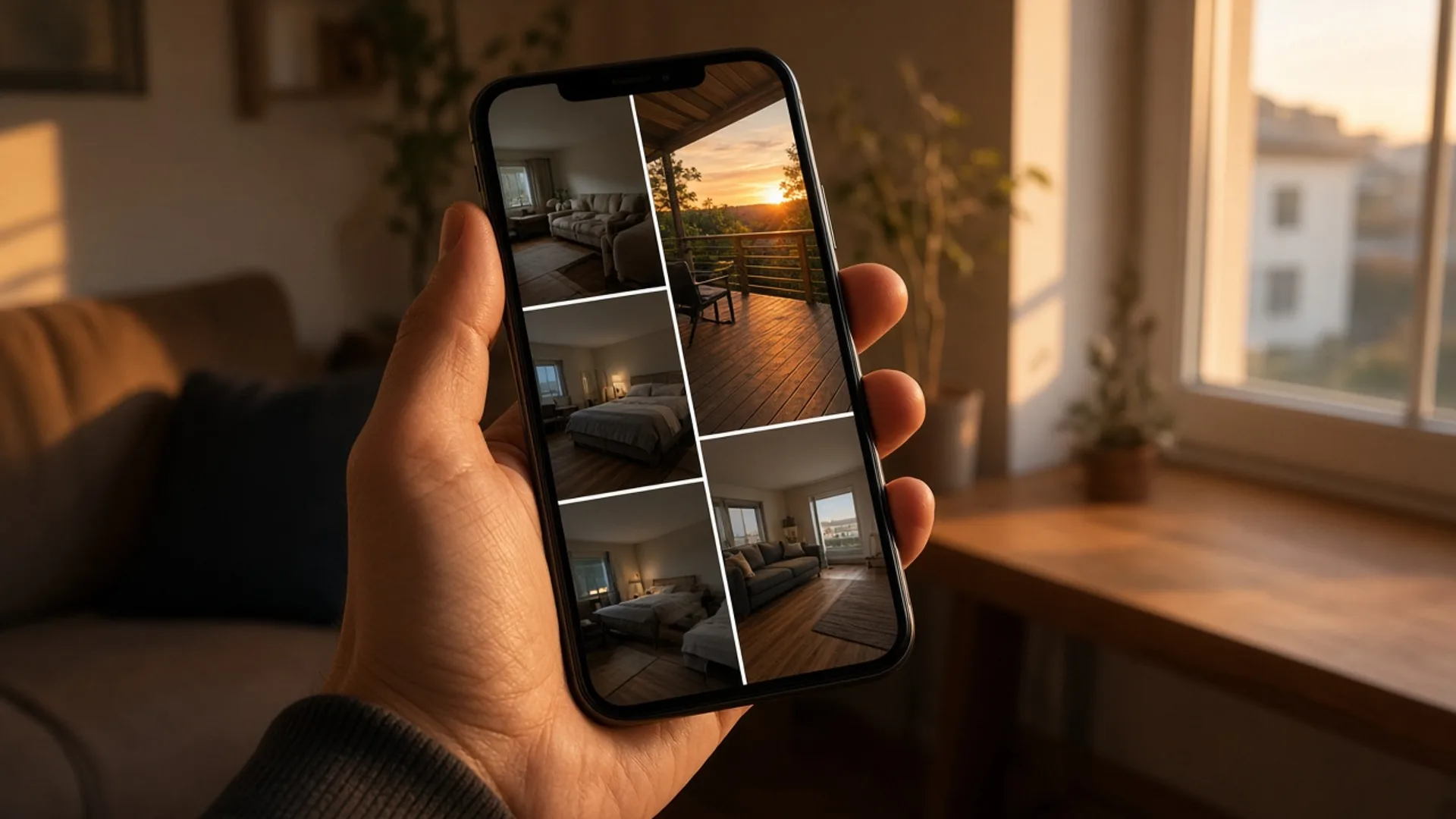
How to Pick the First 5 Photos Guests See Without Paying for a Full Reshoot
You picked your cover photo on purpose. Booking sites may be showing guests a different one. Here's how to check, how to pick the right lead photo, and how to order the five photos guests actually see.
October 9, 2026
10 min
How to Fix Your First Five Airbnb Photos Tonight Without Hiring a Photographer
Your 27th photo can't rescue a weak first impression.
June 3, 2026
6 min
How to Stop Worrying About the Airbnb Algorithm Without Refreshing Rankings All Week
The worst part of a ranking drop is not the drop. It is never finding out why it happened.
May 19, 2026
6 min